DJ Guide
Master your command center. This guide walks you through every part of the DJ Dashboard, from managing incoming requests to controlling your queue in real-time.
Guests can use any device, but the experience is optimized for mobile phones.
Starting a Session
Choose how you want to build your queue
When you create a new session, you now have two powerful options to get started:
Empty Queue
Start with a blank slate. Perfect for when you want to build the vibe entirely from scratch based on incoming requests.
Import Playlist
Select any of your existing Apple Music playlists. GuestDJ will "seed" your queue with these tracks, so you have music ready to play immediately. Guest requests will still jump to the top!
Load Playlist Mid-Session
Changed your mind? You can load a new playlist at any time during the session. Choose "Add to Queue" to append songs to the end, or "Replace Queue" to swap your entire queue with a different playlist.
The Command Center
Your full-screen dashboard for managing the night
What you see
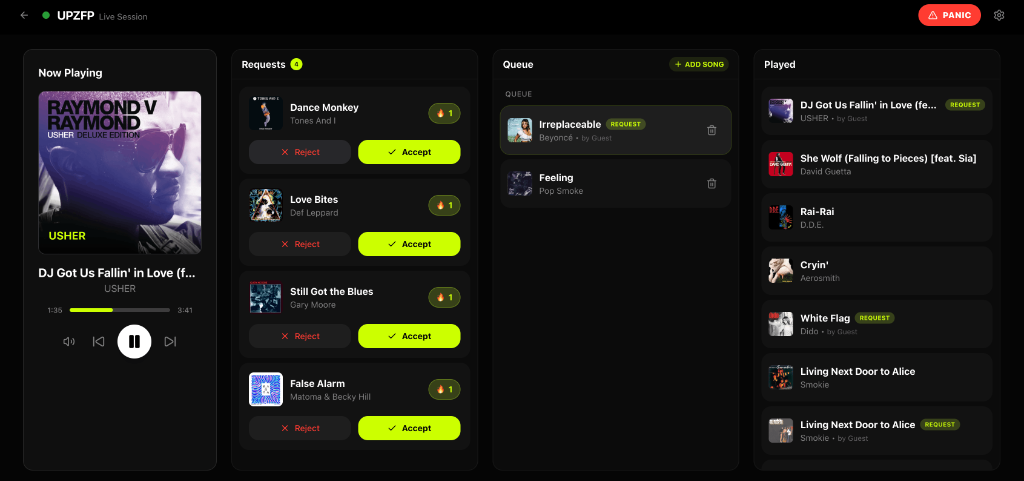
A four-column layout designed for quick decisions:
- Now Playing: The current track with album art and playback controls
- Requests: Incoming song requests from guests, sorted by popularity
- Queue: Your approved playlist, synced with Apple Music
- Played: History of everything that has been played tonight
What you can do
- Accept a request to add it directly to your queue
- Reject a request to remove it from the list
- Add songs manually using the "+ Add Song" button
- Load a playlist into the current session at any time
- Clear queue to start fresh while keeping the current track playing
- Delete individual items from the queue if plans change
- Control playback via the Now Playing widget
System behavior
- When you Accept a request, it instantly appears in your Queue and syncs to your Apple Music playlist.
- When you Reject a request, it is permanently removed. The guest sees "Rejected" on their status page.
- The green badge shows how many guests requested that song — higher numbers suggest crowd favorites.
Key UI elements
- ● Green dot next to session code = Live session active
- 👥 User Icon with number = Live count of active guests in the app
- PANIC button = Emergency stop for requests (top right)
- REQUEST badge = Song was requested by a guest (vs. added by DJ)
- ⚙️ Settings gear icon = Access display modes, Request Only Mode, and more
Managing Requests
The gatekeeper workflow: approve, reject, or let popularity guide you
The Request Card
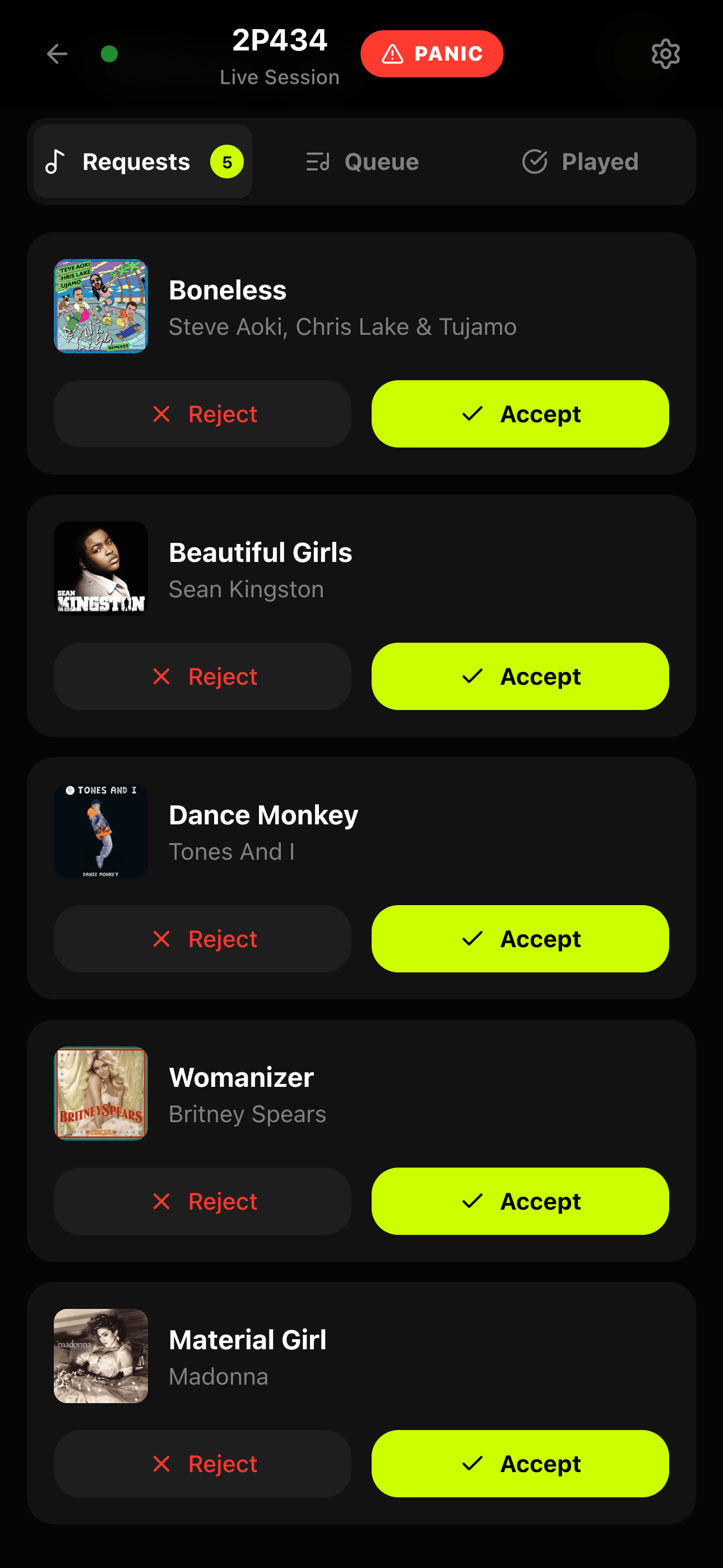
Each request shows the song title, artist, album artwork, and a green badge indicating how many guests have requested it.
✓ Accept
Adds the song to your Queue immediately. It syncs to Apple Music and the guest sees "Accepted" on their phone.
✗ Reject
Removes the request permanently. Use this for duplicates, inappropriate songs, or requests that don't fit the vibe.
Common Misunderstandings
- Rejected songs don't notify the guest immediately.
They'll see the "Rejected" status when they check their requests, but there's no push notification.
- Multiple guests can request the same song.
The badge count increases, but only one instance appears in Requests. Accepting it satisfies all requesters.
- The Queue is not the same as Up Next on Apple Music.
GuestDJ manages a separate playlist that syncs. If you manually skip on Apple Music, GuestDJ updates accordingly.
Queue Control
Reorder, delete, and manage what plays next
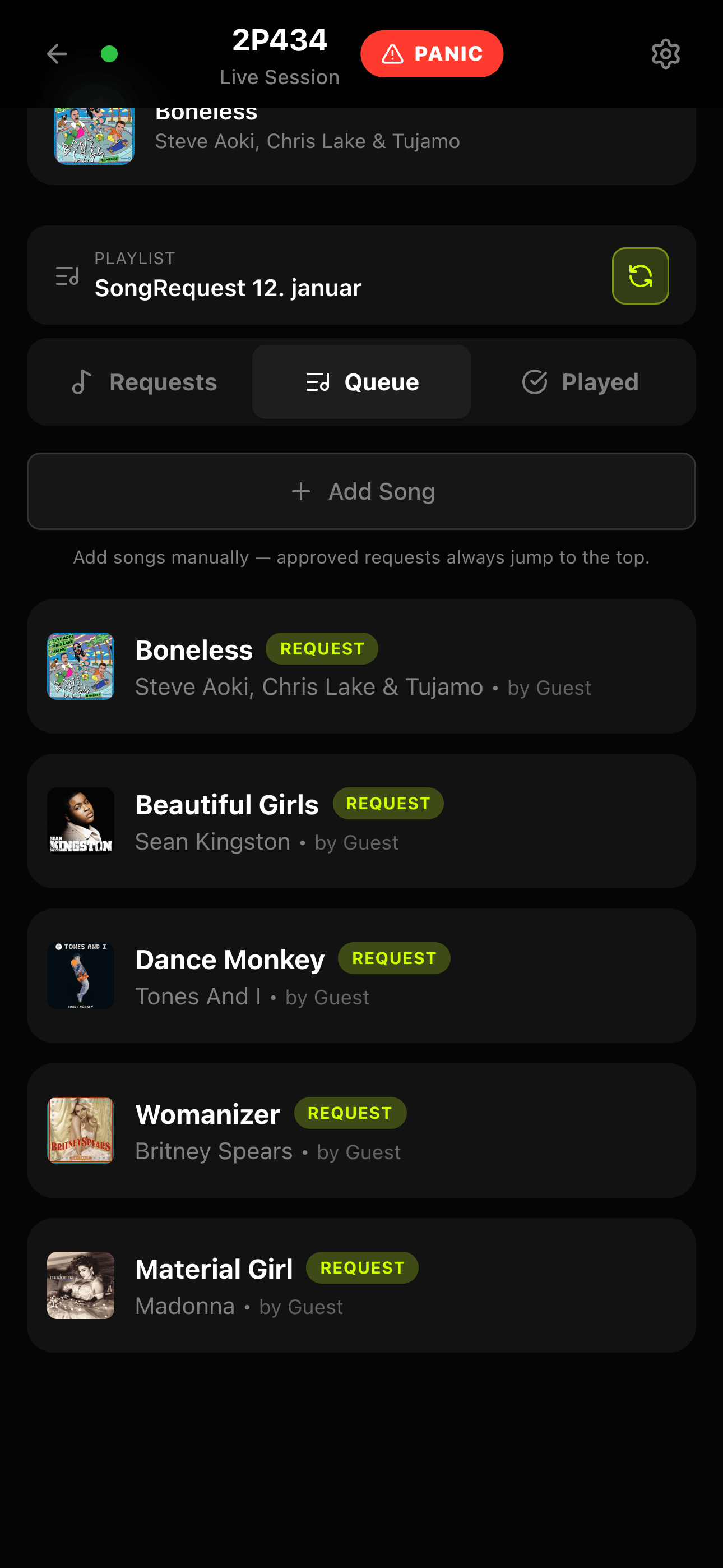
The Queue column shows your approved songs in the order they will play. You have full control to adjust this at any time.
Automatic priority ordering
The queue automatically sorts by priority: Guest requests always appear first, followed by DJ-added songs, then playlist songs. Within each group, first-requested songs appear first (FIFO).
Drag to reorder
Grab any song and drag it up or down. The new order saves instantly and syncs to Apple Music. Long queues auto-scroll when dragging near the edges.
Clear queue
Use the Clear Queue button to remove all songs at once. You can choose to keep the currently playing song while clearing everything else.
Load playlist
Switch playlists mid-session with the Load Playlist button. Choose "Add to Queue" to append songs, or "Replace Queue" to swap your entire queue with a different playlist.
Delete items
Click the trash icon to remove a song from the queue. This does not affect the guest's request status.
REQUEST badge
Songs with this badge came from guest requests. Songs without it were added manually by the DJ or loaded from a playlist.
The Panic Button
Emergency control when things get overwhelming
The bright red PANIC button in the top-right corner instantly pauses all incoming requests. Guests will see a message that requests are temporarily closed.
When to use it:
- • Request volume becomes unmanageable
- • You need to focus on a critical transition
- • The event is wrapping up
- • Technical issues require your attention
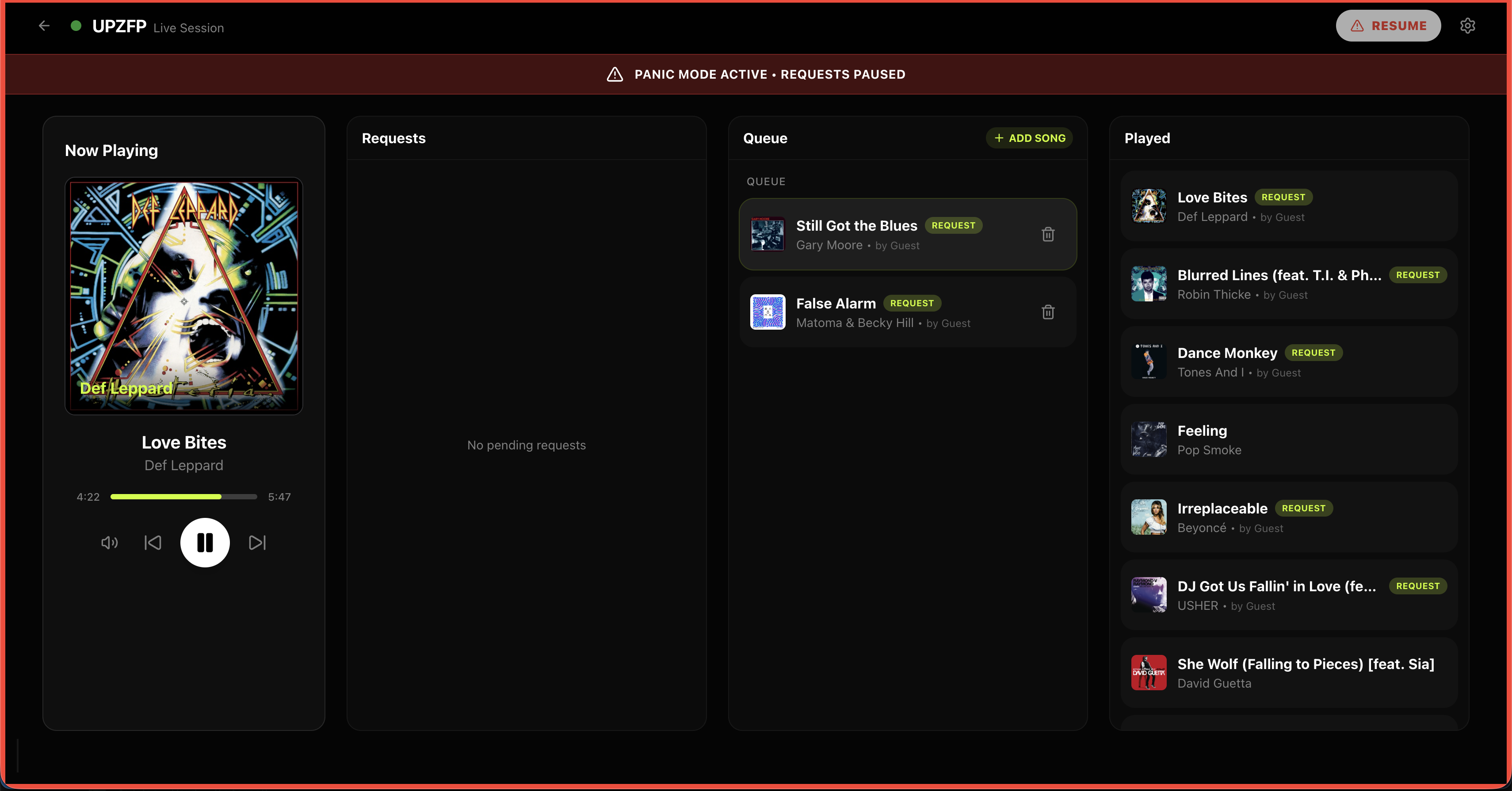
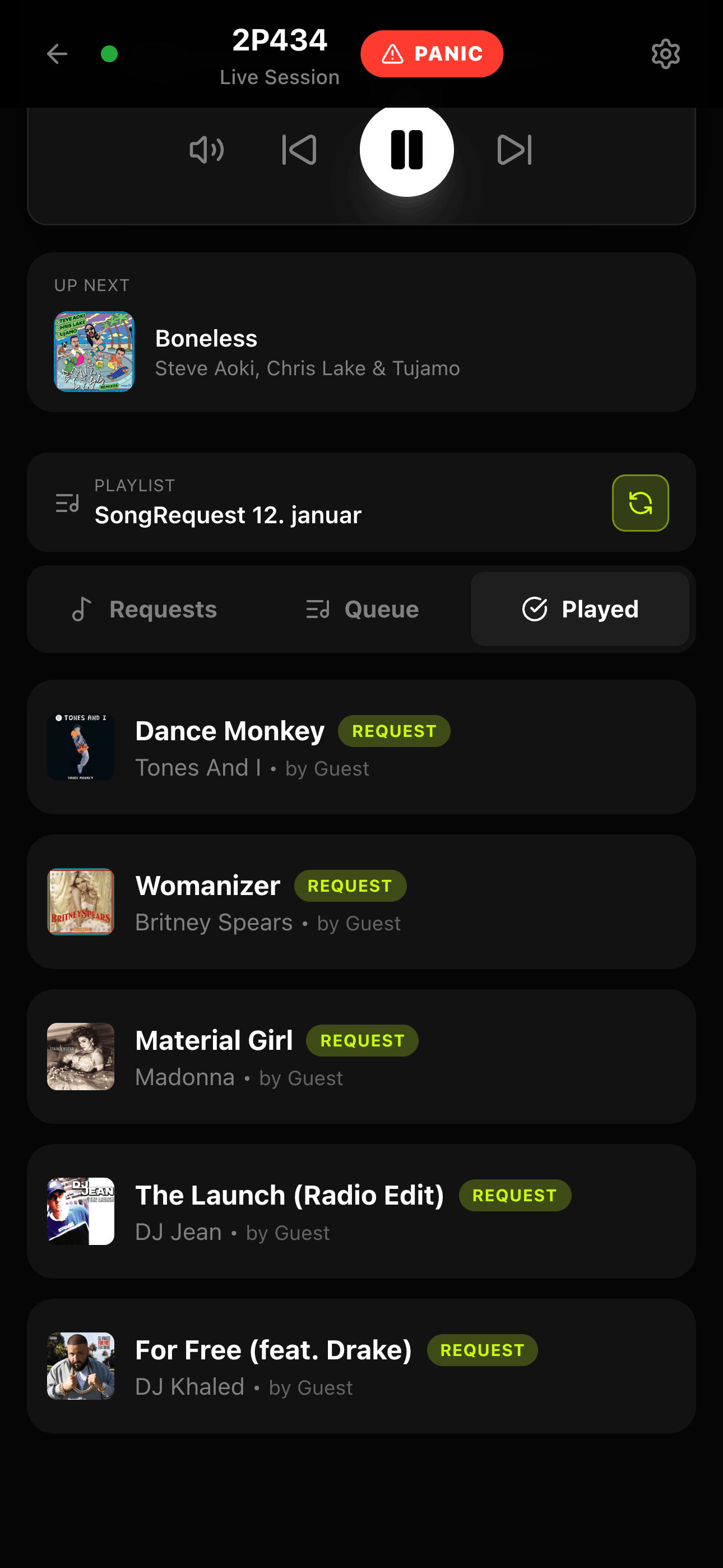
Click again to resume
Manual Search
Add any song directly on Apple Music
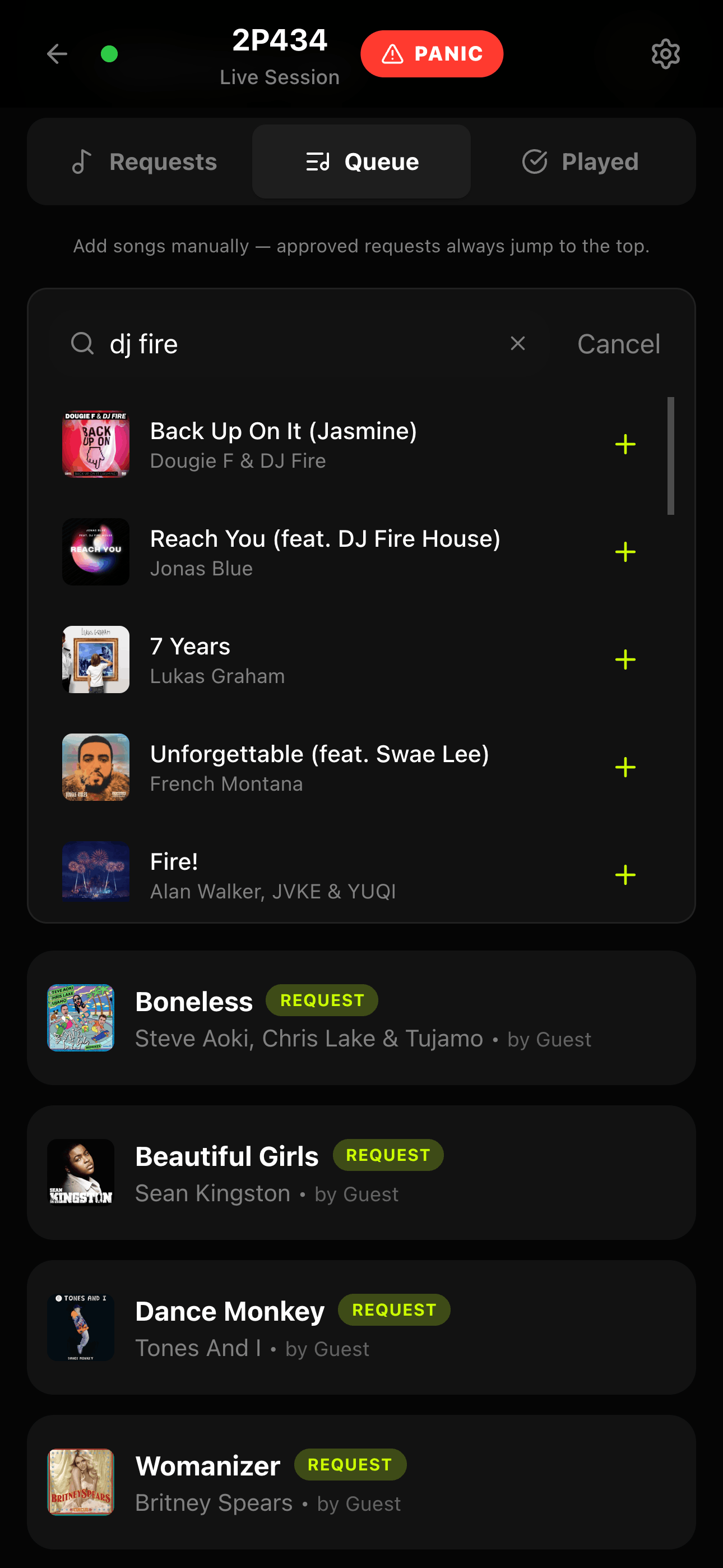
Sometimes you need to play a song that nobody requested. The Manual Search feature gives you full access to the Apple Music catalog.
Instant Add
Found the song you want? Tap it to add it directly to your Queue bottom. It skips the Request approval process entirely.
No Request Badge
Songs added manually appear in the queue without the "REQUEST" badge, so you can distinguish them from guest picks.
Playback Resilience
Your session survives page refreshes
Accidentally refreshed the page or lost connection? GuestDJ automatically saves your playback position and restores it when you return.
Automatic recovery
GuestDJ saves your playback position every few seconds. If you refresh the page, playback resumes from exactly where you left off — same song, same position.
Queue preservation
Your queue, request history, and all session data are stored in the cloud and restored automatically. Nothing is lost on refresh.
SingAlong & Display Modes
Turn any screen into a stage
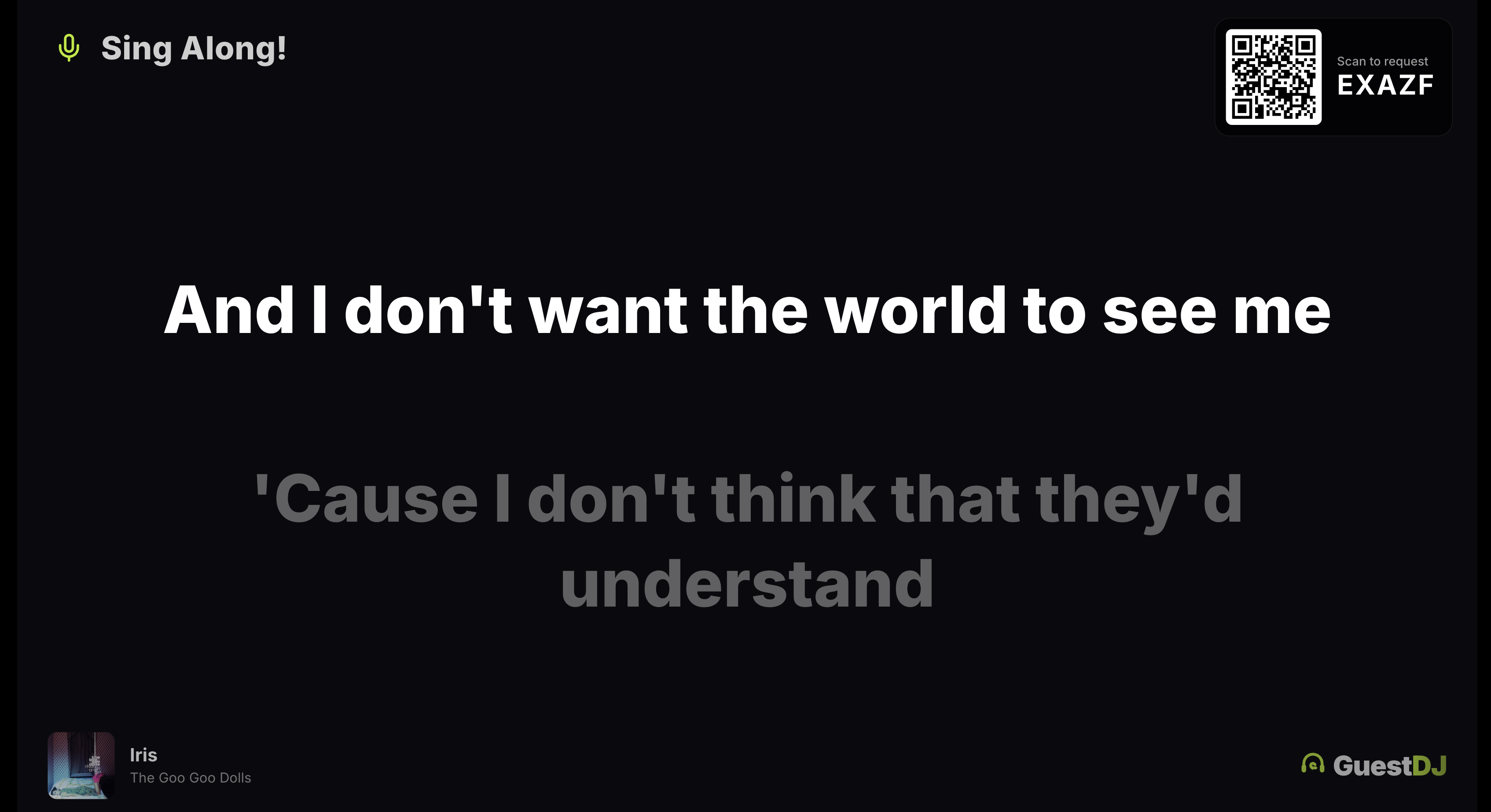
Connect a TV, projector, or second screen to display live session info and karaoke-style lyrics. Open your display by navigating to guestdj.app/d/CODE on any browser.
SingAlong Mode
Real-time synced lyrics appear on the big screen as the song plays. Animated prompts guide the crowd through intros, instrumental breaks, and outros. Enable it from Settings > Display Mode > SingAlong.
Animated stage prompts
SingAlong automatically shows contextual prompts on the big screen to keep the crowd engaged:
- "Get ready to sing!" — appears during the intro before lyrics start
- "Catch your breath!" — shown during long instrumental breaks
- "Great job!" — displayed after the last lyric line, during the outro
Display themes
Choose from Default, Hi-Fi, Jukebox, Wedding, or Sponsor themes to match the vibe of your event. Each theme shows album art, session code, and a QR code for guests to join. The Default and Hi-Fi displays feature animated turntables with picture disc album art and tonearm tracking.
Guest lyrics on mobile
When enabled, guests also see synced lyrics on the Now Playing screen on their phones. They can rotate to landscape for an immersive full-screen experience. Toggle this in Settings > Show Lyrics to Guests.