The Complete Guide to GuestDJ: Every Screen Explained
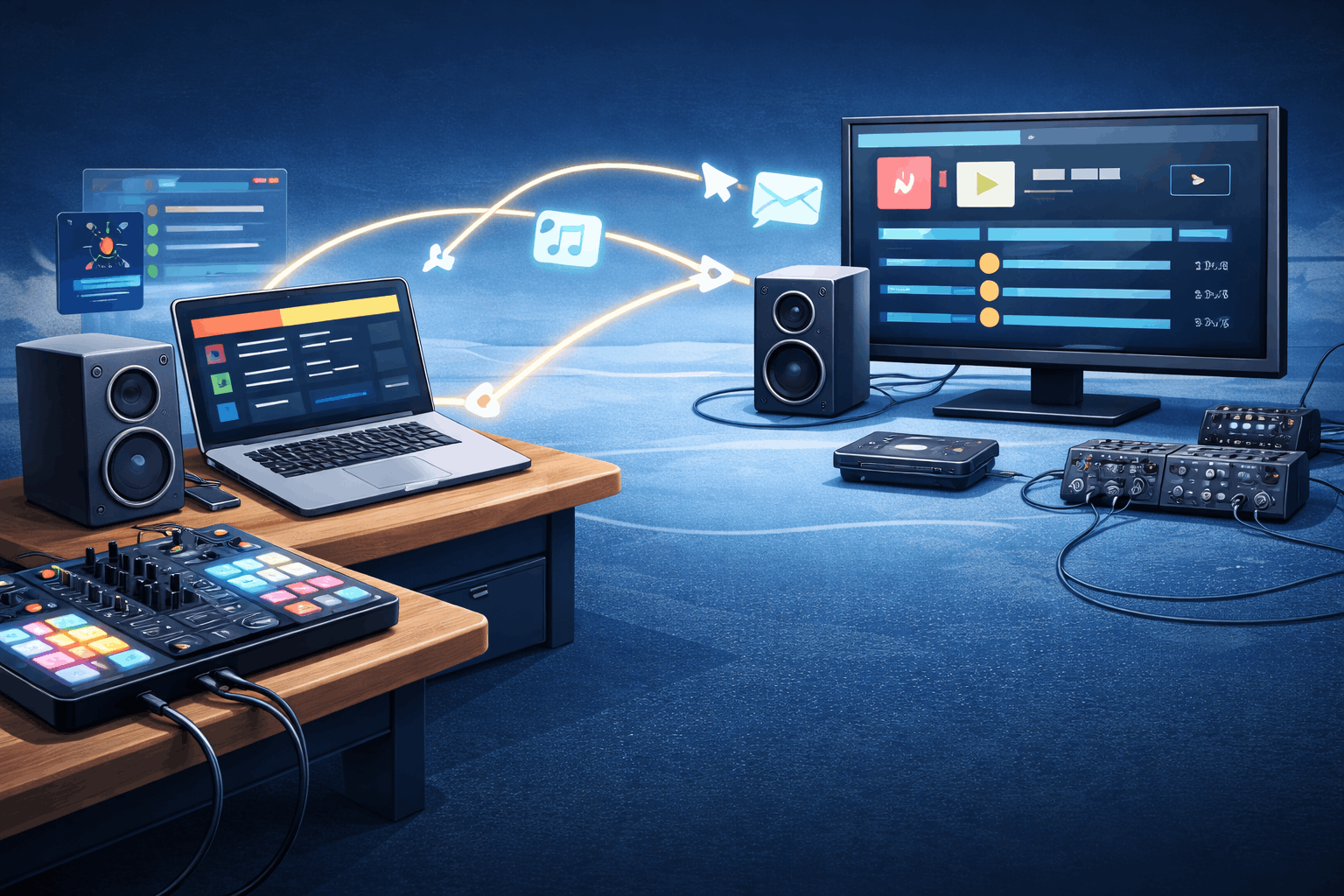
GuestDJ is designed to be simple, but powerful. Here is a complete visual breakdown of how the system works for both the Host (DJ) and the Guest.
The DJ Experience
As the host, you have the "God View". You control the music, the queue, and the vibe.
1. The Gatekeeper Dashboard
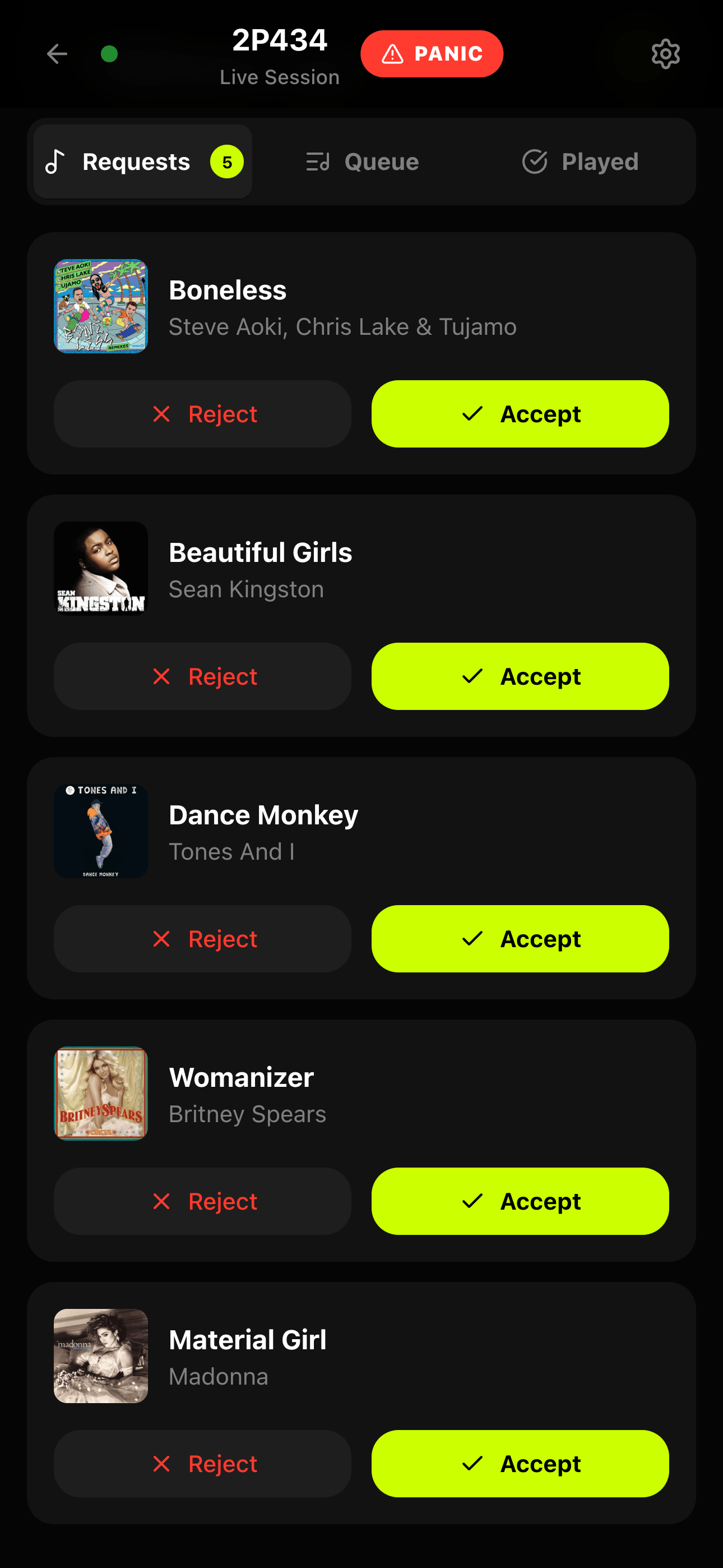
This is your home screen. When guests request songs, they appear here instantly.
- Green Checkmark: Approves the song and adds it to your Apple Music queue.
- Red X: Rejects the request and removes it.
- Requester Info: See who requested each track.
2. Live Control & Panic Mode
You need quick access to emergency controls. The top bar is your safety net.
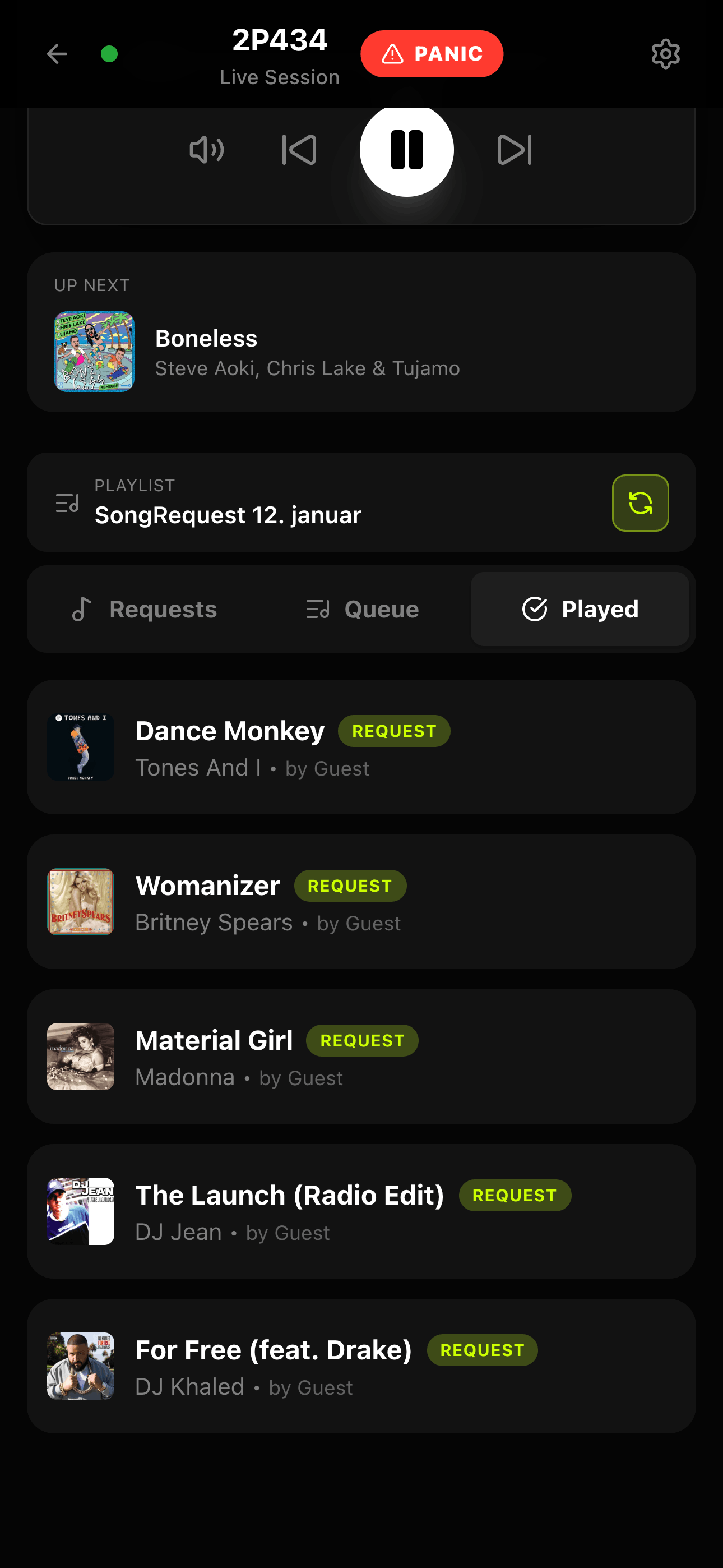
- Panic Button: Instantly locks requests if the party gets out of hand. The music keeps playing, but the queue is paused.
- Session Code: Always visible at the top for easy sharing.
3. Queue Management
Keep track of the night's history and what's coming next.
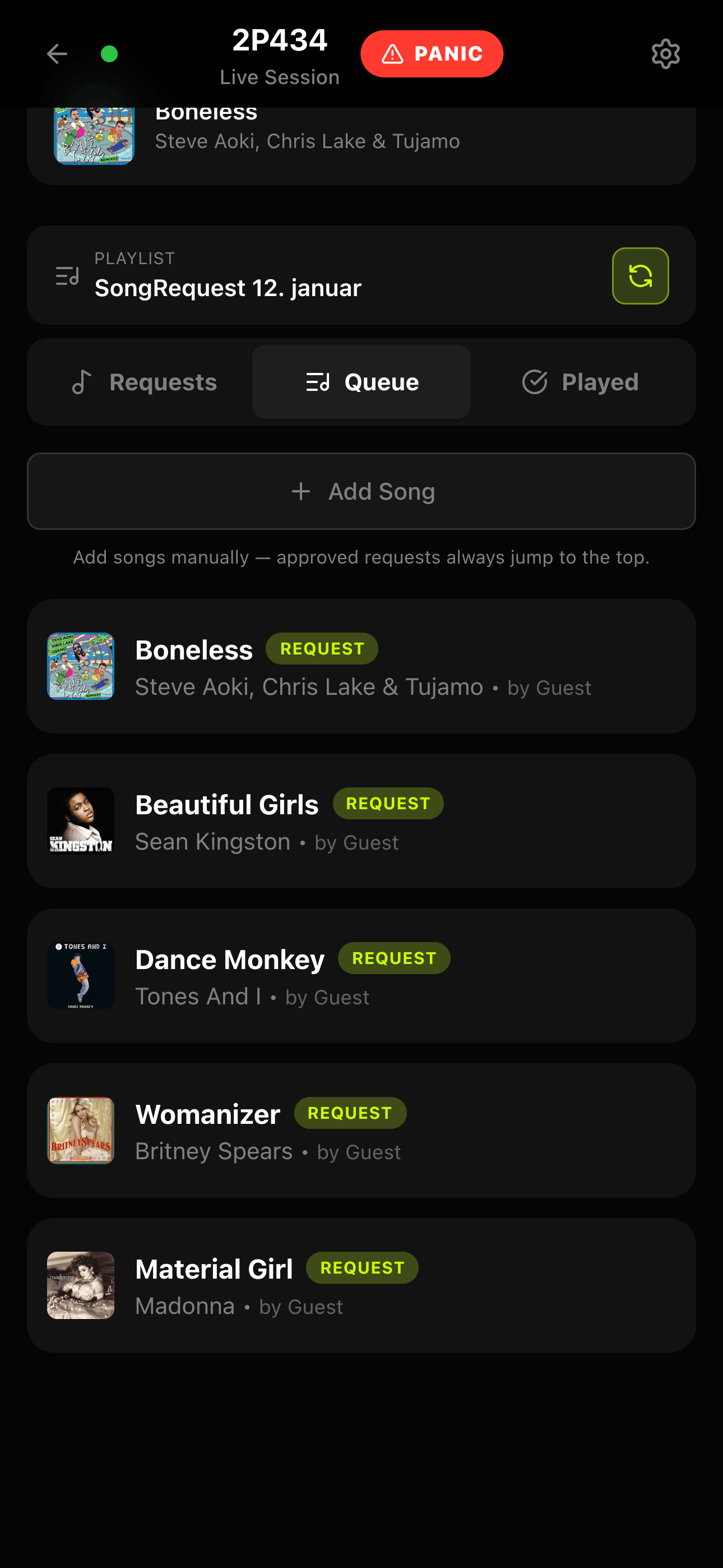
Switch between Requests (Pending), Queue (Approved/Upcoming), and Played (History) tabs to manage the flow.
4. Manual Search
Need to drop a specific track yourself? You have full access to the Apple Music catalog.
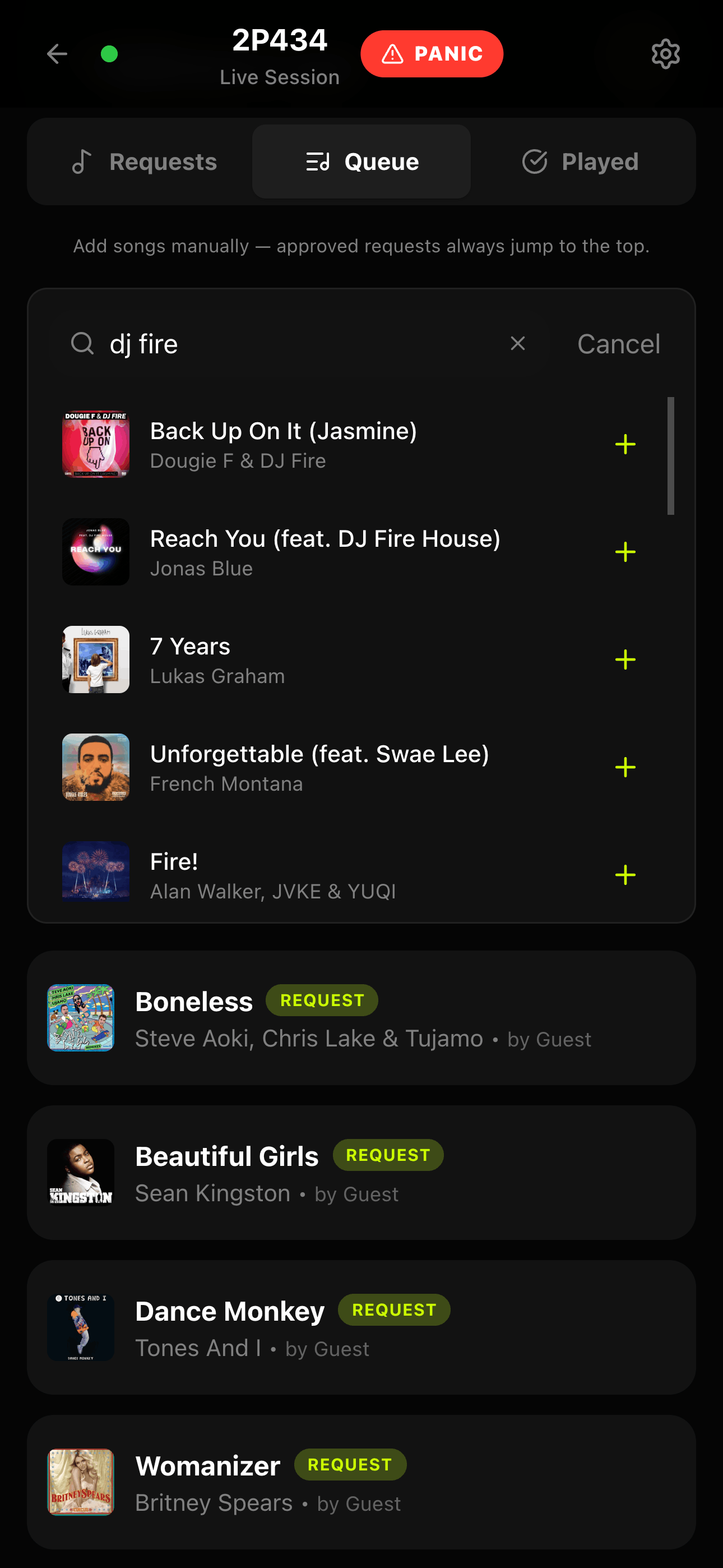
Songs you add manually skip the approval process and go straight to the top of the queue.
The Guest Experience
Guests don't need an account or an app. They just scan a code and join the session.
1. Find & Request
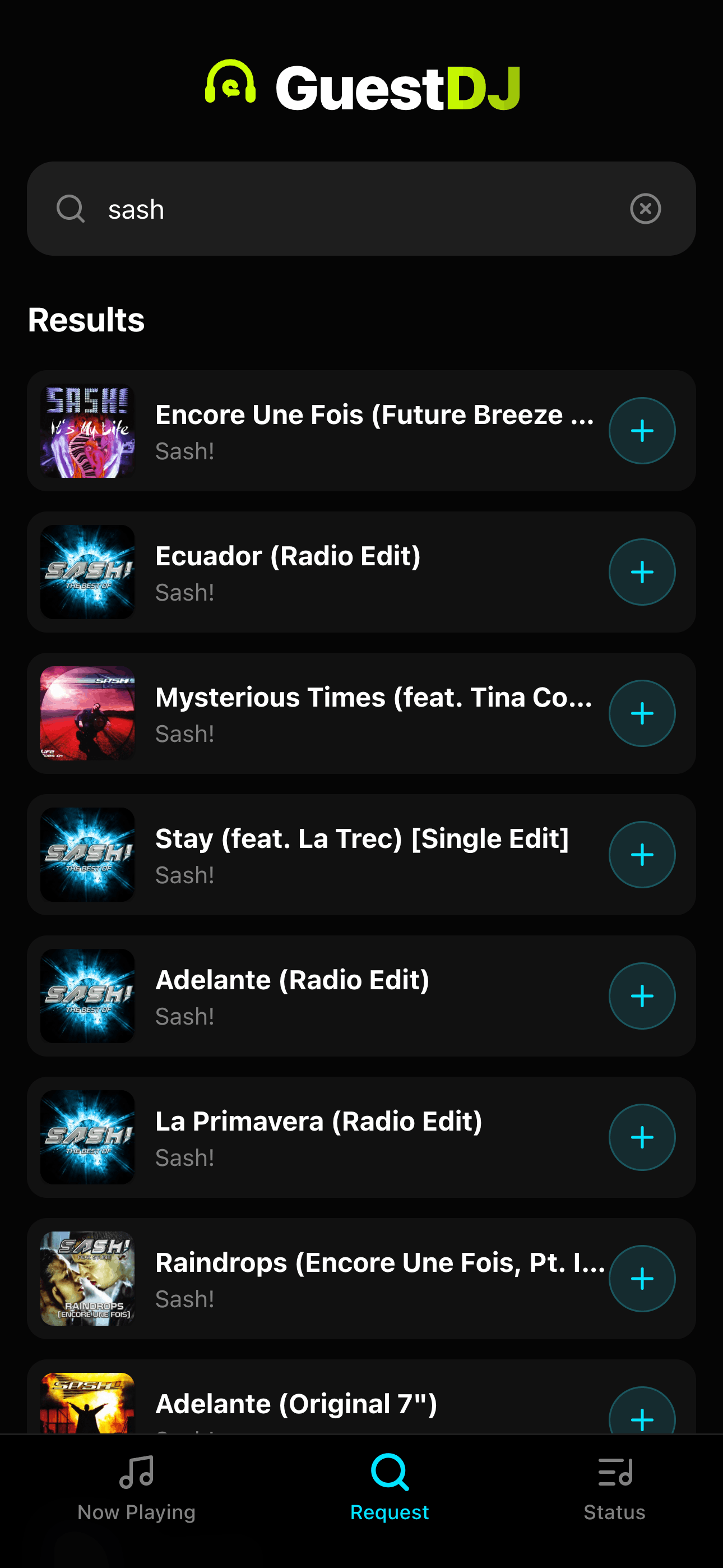
A simple, familiar search bar lets them find songs in seconds. One tap sends the request to you.
2. The Party Connected
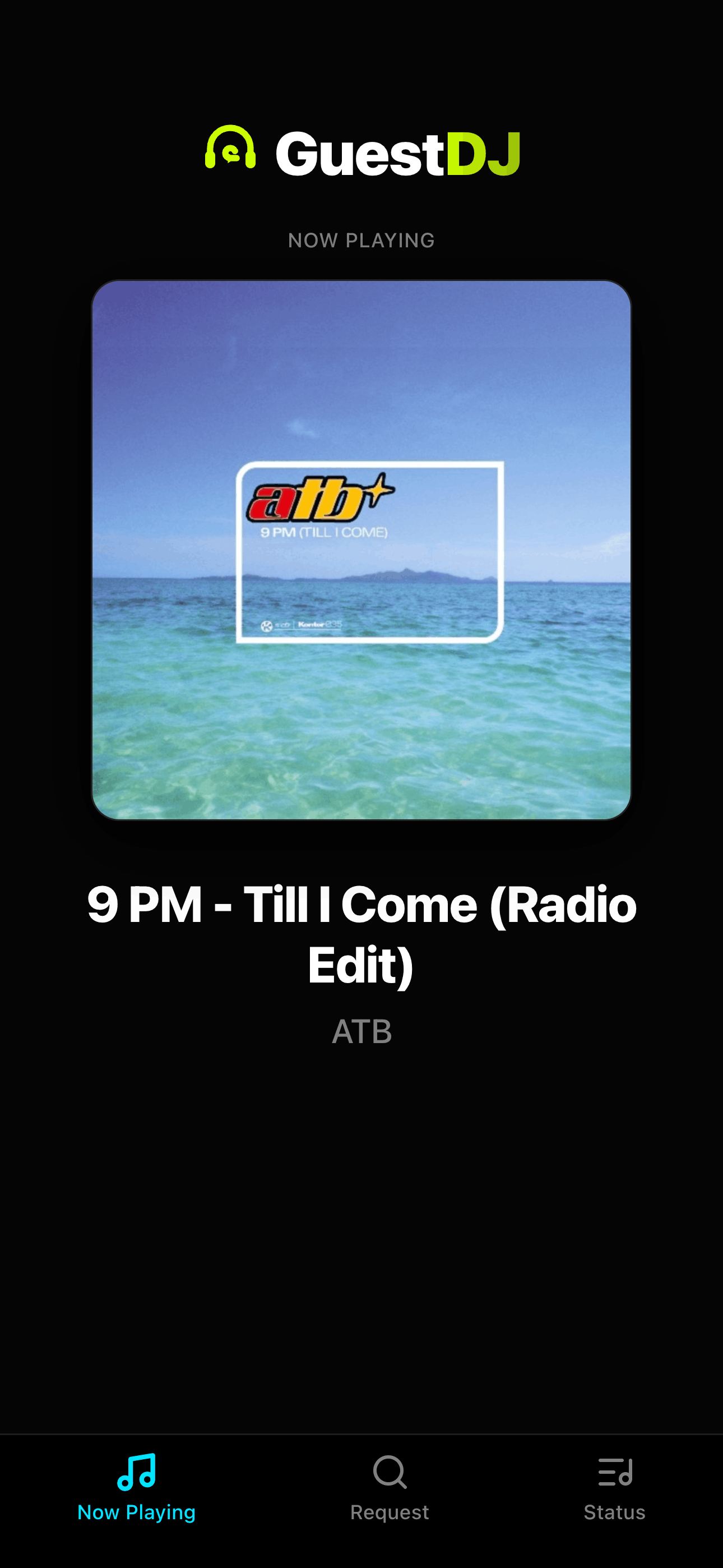
Everyone's phone stays in sync. Guests can see exactly what's playing, check the album art, and feel connected to the room.
The Big Screen
Turn any TV into a "Now Playing" display to drive engagement.
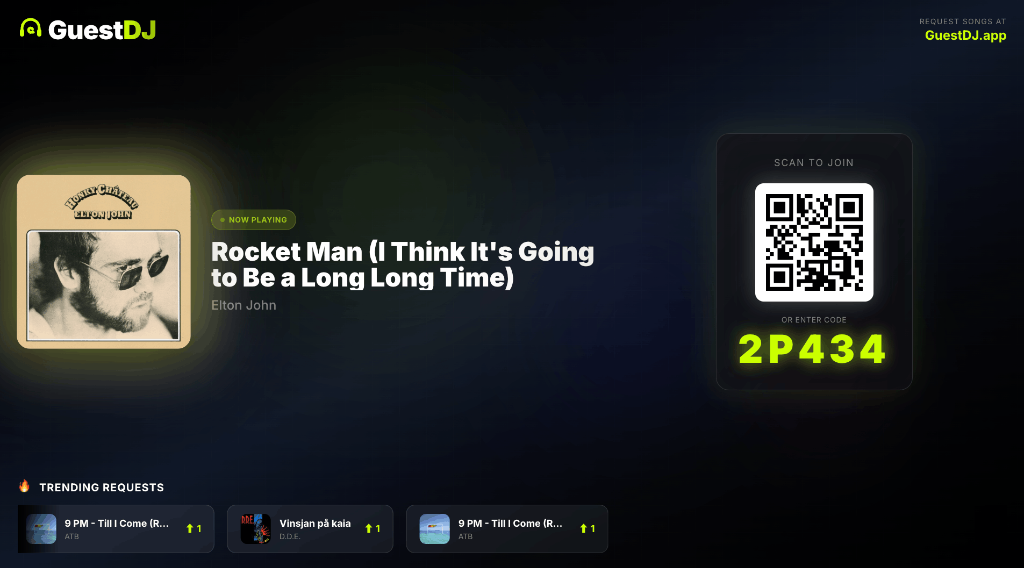
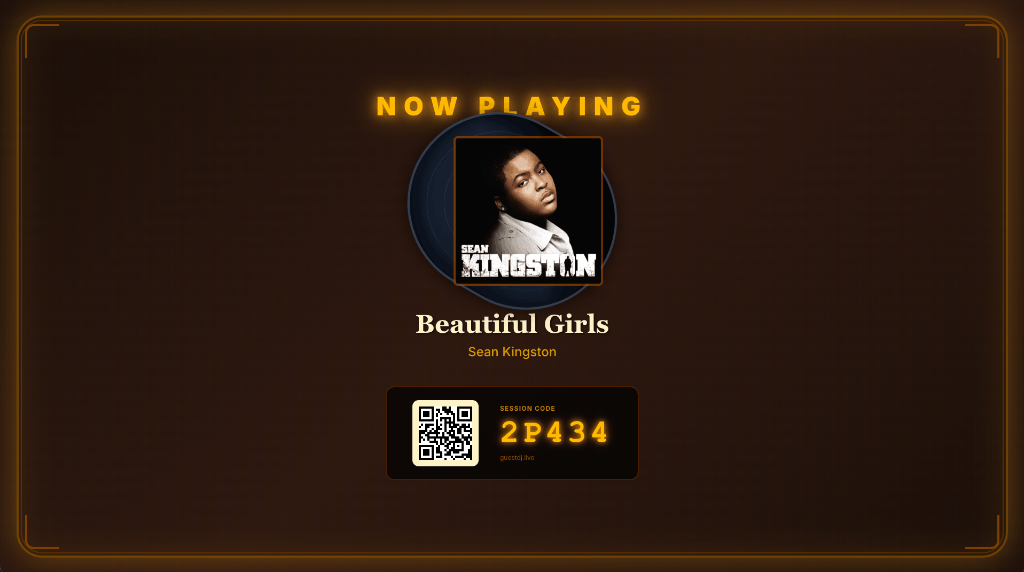
Whether it's a house party or a wedding, visualizing the music encourages people to participate.
Thanks for reading. Happy hosting!