The Complete GuestDJ Setup Guide: Audio, Display, and Everything In Between
You've signed up, connected Apple Music, and your first guest just requested "Bohemian Rhapsody." Now you need one thing: sound coming out of a speaker. This guide walks you through every setup scenario — from a phone on a kitchen counter to a full PA rig at a wedding.
How GuestDJ Audio Works (The 30-Second Version)
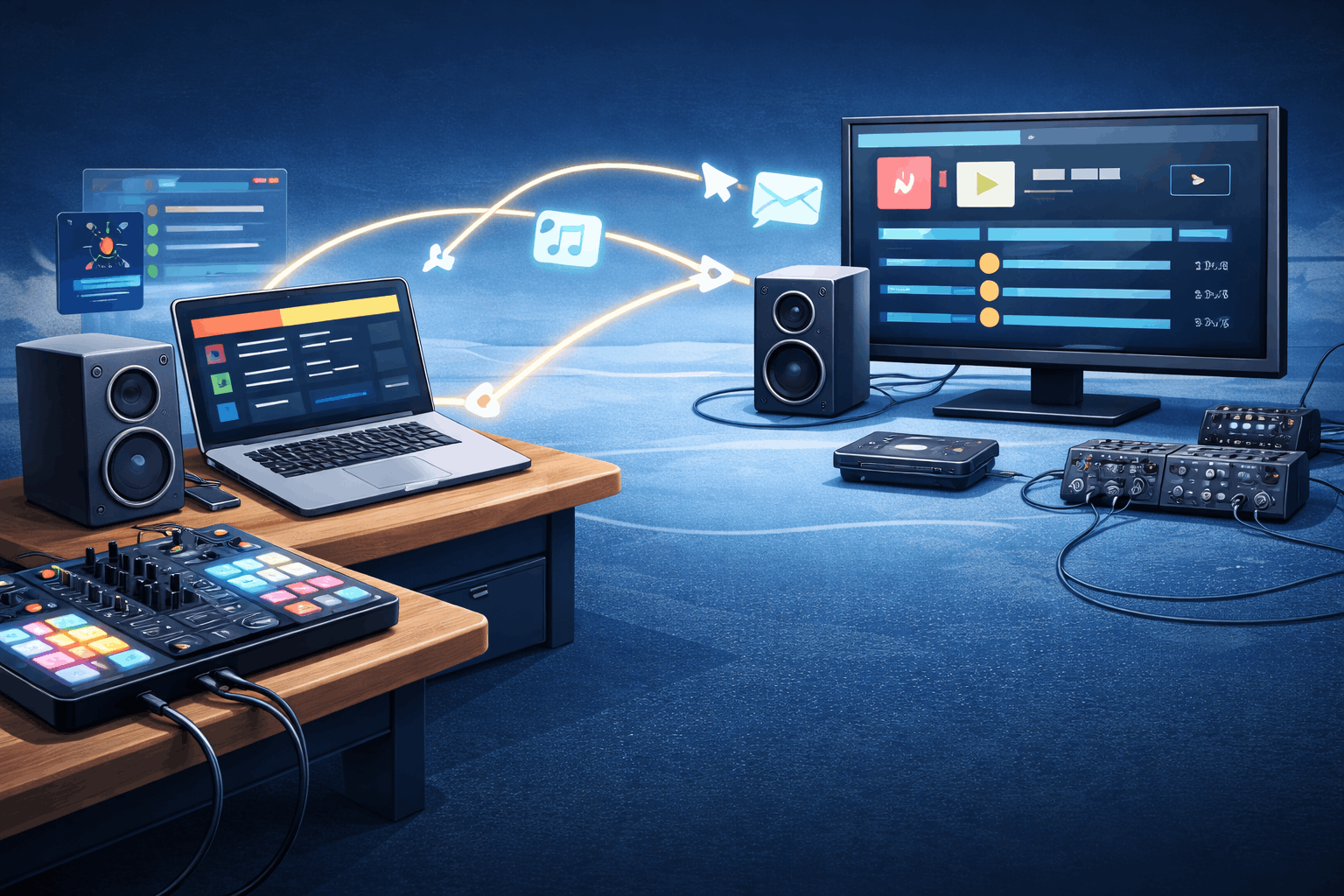
GuestDJ plays music through Apple Music in your browser. That means audio comes out of whatever device is running the DJ Dashboard — your laptop, phone, or tablet. Your only job is to get that audio to a speaker your guests can hear.
Think of it like this:
Your browser is the source. Your speaker is the destination. Everything else is just the cable (or wireless connection) between them.
That's it. No audio interfaces required for basic setups. No special software. If your device can play music and you can hear it, GuestDJ will work.
Option 1: Built-in Speakers
Best for: Small rooms, casual hangouts, 2–10 people
The absolute simplest setup. Open GuestDJ on your laptop or phone, start a session, and the music plays through the device's built-in speakers. That's the entire setup.
When to use it: You're in a small room, there's no external speaker available, and the vibe is casual. Think: dinner parties, board game nights, or a chill afternoon.
The trade-off: Built-in speakers are quiet. They work in a kitchen. They don't work in a living room full of people talking.
Option 2: Wired Speaker (3.5mm or USB)
Best for: Most setups. Reliable, zero latency, just works.
Plug a cable from your laptop's headphone jack (3.5mm) or USB port into an external speaker. This is the default recommendation for anyone who wants good sound without complexity.
Step by step
- Connect the cable from your laptop to the speaker's AUX or USB input.
- Open GuestDJ and start a session.
- Play a test song — you should hear it immediately through the speaker.
- If you don't hear audio, check your system's audio output is set to the correct device.
Why wired is king: Zero latency. No pairing issues. No battery worries on the speaker side (if it's powered). If you're running karaoke with SingAlong mode, wired is mandatory — Bluetooth delay makes lyrics drift out of sync.
Option 3: Bluetooth Speaker
Best for: Outdoor events, portable setups, house parties without a wired option
Pair a Bluetooth speaker with the device running GuestDJ. Music plays wirelessly.
Step by step
- Put your Bluetooth speaker into pairing mode.
- On your laptop or phone, open Bluetooth settings and connect to the speaker.
- Open GuestDJ and start a session.
- Play a test song — audio should come through the Bluetooth speaker.
Important: Bluetooth latency
Bluetooth adds 100–300ms of audio delay. For normal music playback, you won't notice. But for SingAlong karaoke mode, the lyrics will appear slightly before the audio reaches the speaker — which looks and feels wrong.
Rule of thumb: Bluetooth is great for music. Wired is required for karaoke.
Option 4: Sound System via Mixer / PA
Best for: Venues, weddings, corporate events, anywhere with a house sound system
For professional setups, you'll route audio from your laptop into the venue's existing sound system. This usually means going through a mixer or PA system.
Step by step
- Connect your laptop to a USB audio interface (like a Focusrite Scarlett, Behringer UMC, or similar).
- Run a cable from the audio interface to the mixer (typically XLR or 1/4" TRS).
- Alternatively, if the venue mixer has a 3.5mm AUX input, you can go directly from your laptop's headphone jack — no audio interface needed.
- Set your system audio output to the audio interface.
- Test with a song before guests arrive. Adjust levels at the mixer.
Pro tip: If you're plugging into a mixer that also has microphones, ask the sound engineer to give you a dedicated channel. This makes it easy to adjust GuestDJ's volume independently from the mics.
The Big Screen: Connecting a TV or Projector
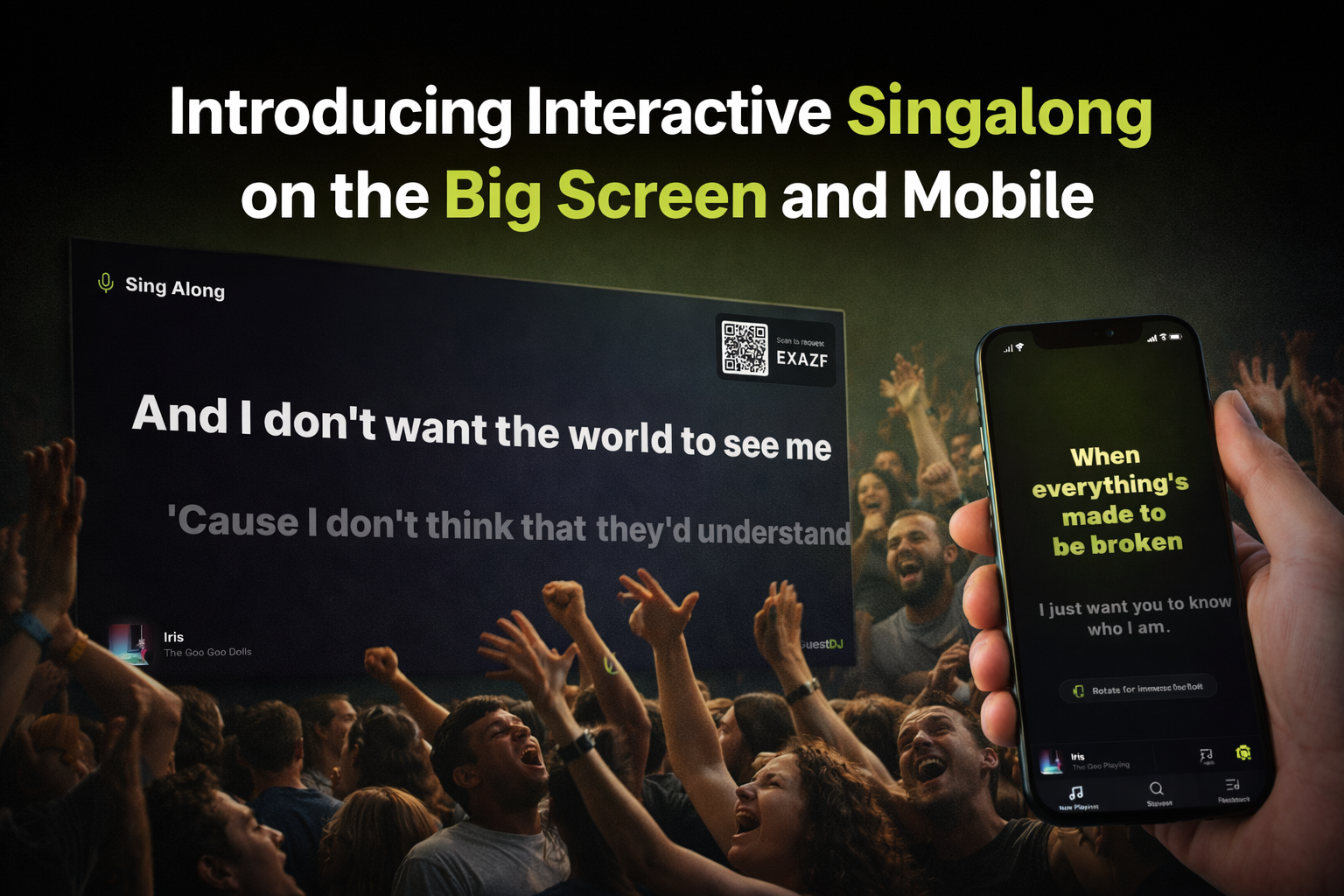
GuestDJ has a dedicated display page designed for TVs and projectors. It shows the session code, a QR code for guests to join, the currently playing song, and — with SingAlong mode — live karaoke lyrics.
The display page URL is: guestdj.app/d/CODE (replace CODE with your session code). Open this in any browser on any device connected to a screen.
Method A: HDMI Cable
Simplest and most reliable.
- Plug an HDMI cable from your laptop to the TV or projector.
- Open a second browser window and navigate to
guestdj.app/d/CODE. - Drag that window to the external screen.
- Double-click to go fullscreen.
If you're using HDMI, audio will go to the TV speakers by default. To keep audio on your laptop (so you can route it to better speakers), change your system audio output back to your laptop or external speaker.
Method B: AirPlay (Apple TV)
Wireless, great for Apple setups.
- Make sure your laptop and Apple TV are on the same WiFi network.
- In Safari, open the display page and use AirPlay to send just that tab to the Apple TV.
- This keeps your DJ Dashboard private on your laptop screen.
Heads up: AirPlay has a 1–2 second display delay. This is normal and only affects the screen — your local audio stays in sync. For SingAlong lyrics, this means the TV lyrics will be slightly behind the music. If perfect sync matters, use HDMI.
Method C: Chromecast
Wireless, great for non-Apple setups.
- Open Chrome and navigate to the display page.
- Click the three-dot menu → "Cast" → select "Cast tab".
- Choose your Chromecast device.
Same latency caveat as AirPlay — expect 1–2 seconds of display delay.
Real-World Setup Recipes
Here are three common scenarios with exactly what you need for each.
The House Party
Gear: Phone or laptop + Bluetooth speaker. Optional: a TV.
- Open GuestDJ on your phone or laptop.
- Connect your Bluetooth speaker.
- Start a session and share the code.
- Optional: hook up a TV with HDMI or AirPlay to show what's playing — it adds a lot to the vibe.
This is the "5-minute setup" that works for 10–50 people. Minimal gear, zero cables (if using Bluetooth), maximum fun.
The Bar or Restaurant
Gear: Laptop + 3.5mm aux cable + HDMI cable.
- Set up your laptop behind the bar or at a dedicated station.
- Run a 3.5mm cable from the laptop to the house sound system's AUX input.
- Run an HDMI cable to the bar TV.
- Open the display page on the TV.
- Print the QR code or put the session code on table cards.
This setup turns a regular night into an interactive experience. Patrons request songs from their phones, the bar TV shows what's playing, and the house speakers handle the sound.
The Wedding or Corporate Event
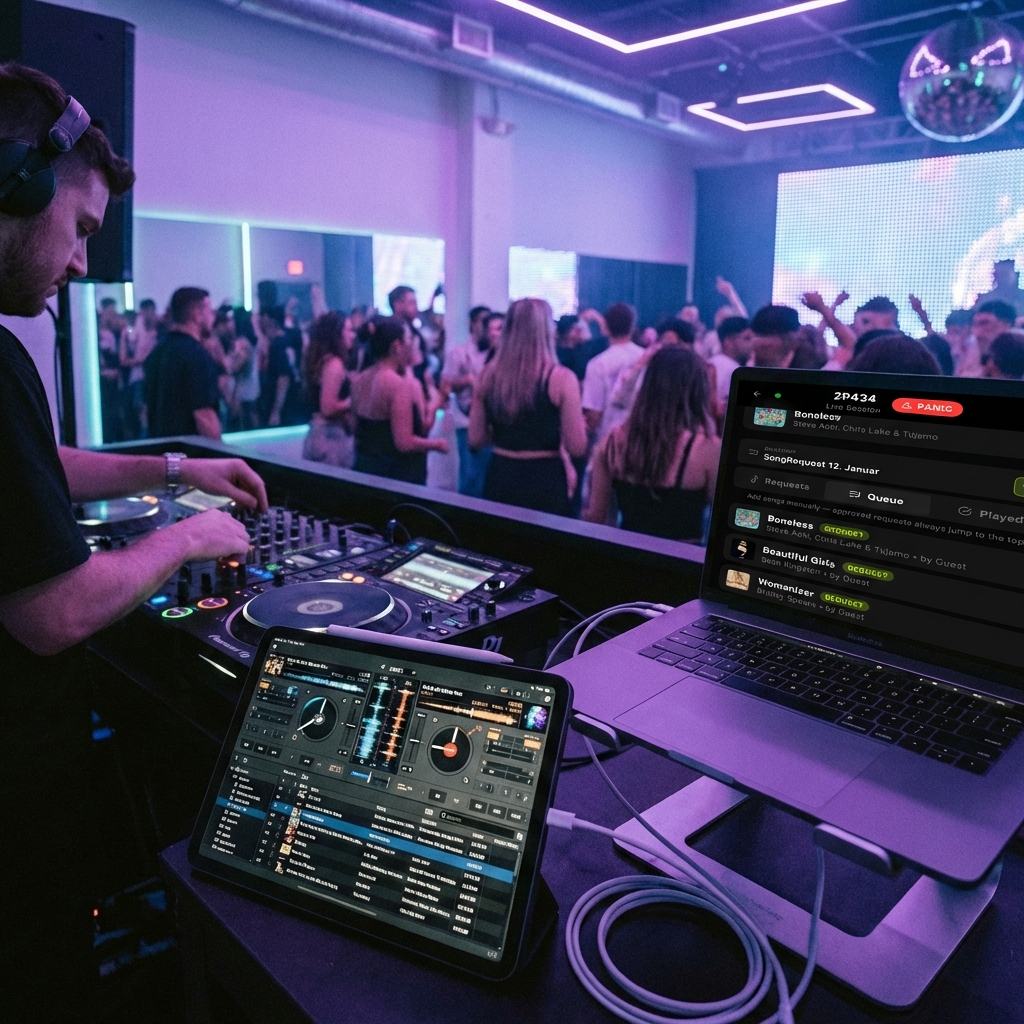
Gear: Laptop + USB audio interface + HDMI cable (or a second laptop for the display).
- Set up at the DJ/AV station.
- Connect USB audio interface → mixer/PA system.
- Connect HDMI → projector or large TV.
- Set the display mode to SingAlong or Wedding theme.
- Test audio levels before guests arrive.
Pro tips for events:
- Use a dedicated second laptop just for the display page. This keeps your dashboard free for managing requests.
- Bring a backup mobile hotspot in case the venue WiFi is unreliable.
- Test the full setup during soundcheck — not 5 minutes before doors open.
- Set up the Wedding or Sponsor display theme before the event starts so it looks polished from the moment guests walk in.
Troubleshooting Quick Reference
No sound?
- Check that Apple Music is actually playing (not paused).
- Verify your browser has audio permission (some browsers block autoplay).
- Check your system audio output — is it set to the right speaker/interface?
- Make sure your Apple Music subscription is active.
- Try refreshing the page — GuestDJ auto-recovers your playback position.
Display not showing on the TV?
- Double-check the URL: guestdj.app/d/CODE (not /display, not /tv — just /d/).
- Make sure the session is active (not ended).
- Verify you're using the correct session code.
- Try a different browser if the page won't load.
Bluetooth audio is out of sync with lyrics?
- This is expected — Bluetooth adds 100–300ms delay.
- Switch to a wired connection for SingAlong/karaoke use.
- Newer Bluetooth 5.0+ speakers have lower latency, but wired is always better for lyrics sync.
AirPlay or Chromecast display is laggy?
- 1–2 second delay is normal for wireless display protocols.
- This only affects the TV — your local audio is not delayed.
- For zero-lag display, use a wired HDMI connection.
- Keep your laptop and the TV/streaming device on the same WiFi network.
The Golden Rule
If you remember one thing from this guide, let it be this:
Test your setup before the first guest arrives. Every setup problem is easy to fix when you have 10 minutes. It's impossible to fix when 50 people are staring at you.
Run a test song. Check the volume. Make sure the display page loads. Confirm the session code is visible. Then relax — you're ready.
Thanks for reading. Happy hosting!