Guides 4 min read
How to Set Up the Perfect Party Screen
Song Request Team
•
Your venue has screens. Use them.
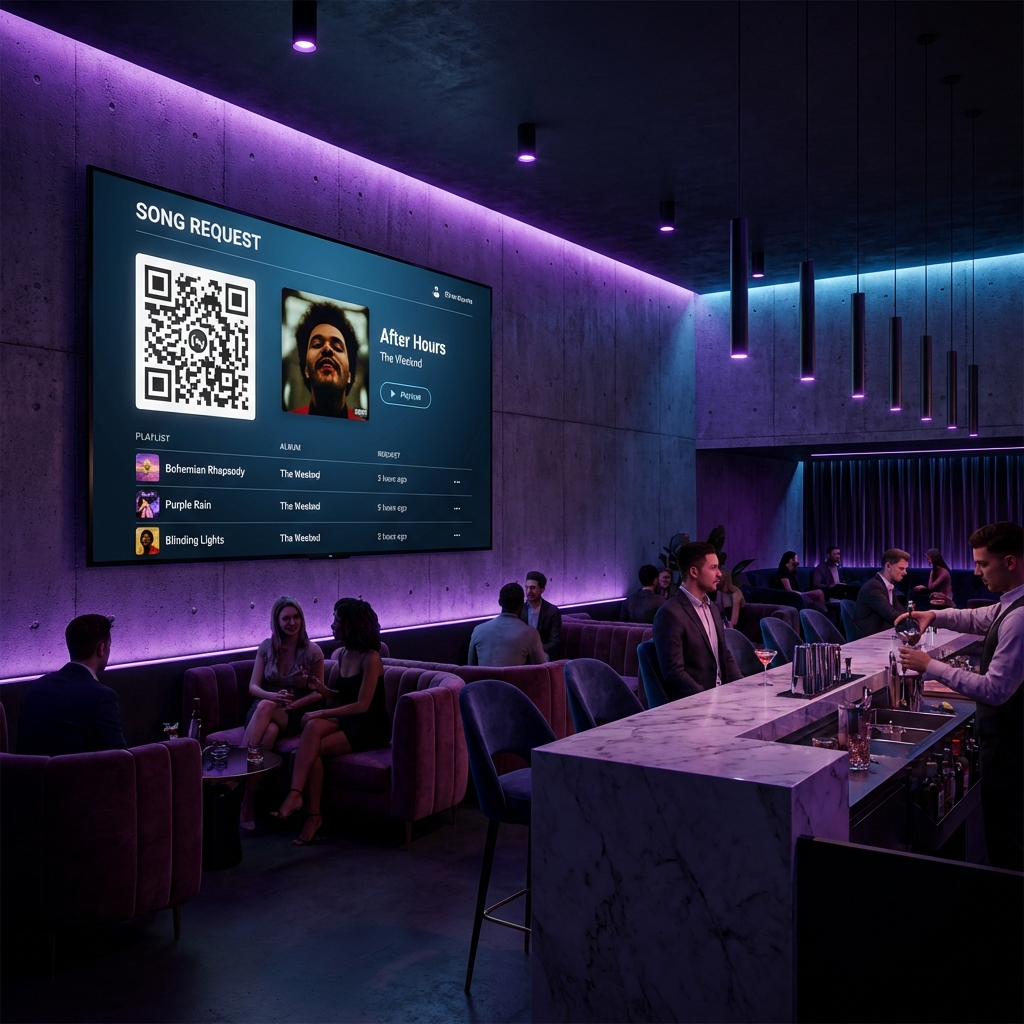
Most bars and parties leave their TVs on a sports channel or a blank saver. GuestDJ's Display Mode turns them into an interactive "Now Playing" stage.
Step 1: Connect the Screen
For the smoothest experience, do not use your TV's built-in browser. They are often slow and hard to navigate.
Instead, use one of these pro methods:
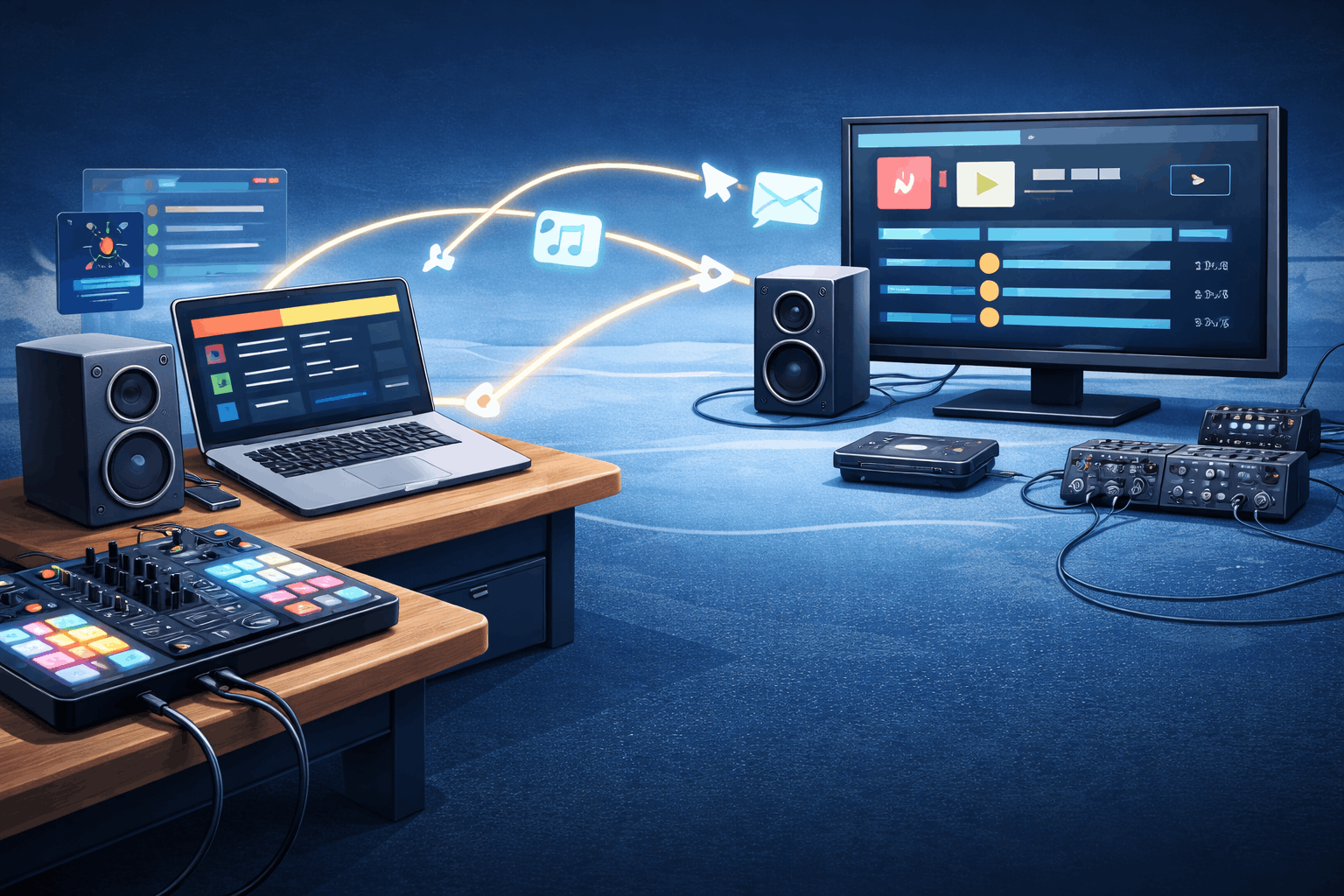
- HDMI Cable (Best): Connect a laptop directly to the TV. This guarantees 4K quality and zero lag.
- AirPlay / Chromecast: Cast the display page (e.g.,
guestdj.app/d/ABCD) from your phone or computer to the screen.
Pro Tip: Double-click anywhere on the display page to go full-screen instantly.
Step 2: Choose Your Mode
We've built three distinct vibes for different events:
- Default: Shows big album art, the "Up Next" queue, and a join code. Perfect for house parties.
- Sponsor Mode: shrinks the music info to the bottom and features a large central area for your logo, a sponsor message (e.g., "$5 Margaritas"), and a custom QR code. Essential for bars and venues.
- Wedding Mode: Elegant typography, a custom photo of the couple, and a romantic backdrop. It turns the request system into a piece of decor.
Step 3: Drive Engagement
Once the screen is up, guests will naturally start scanning the QR code. You'll see request volume increase by 30-50% when the queue is visible. It gamifies the night—everyone wants to see their song pop up on the big screen.
Thanks for reading. Happy hosting!